How TrimBooking works
TrimBooking gives your hairdressing salon, beauty salon, barbers or dog grooming business its own online booking page, a dashboard to manage every appointment, and portals for both customers and staff. Here's what happens on each side.
Set up once, run every day from one place
Sign up
Create your business in a couple of minutes — a name, a web address and you're registered.
Add your details
Add your services and prices, staff members and their working hours, opening hours, and your logo and brand colour.
Share your link
Send customers to yourshop.trimbooking.co.uk or add it to Instagram, Google or your website.
Visit the live demo shop → · See a sample owner dashboard (repeat-booking alerts, phone bookings, rebooking) → · Try the website import demo →
What you and your customers actually see
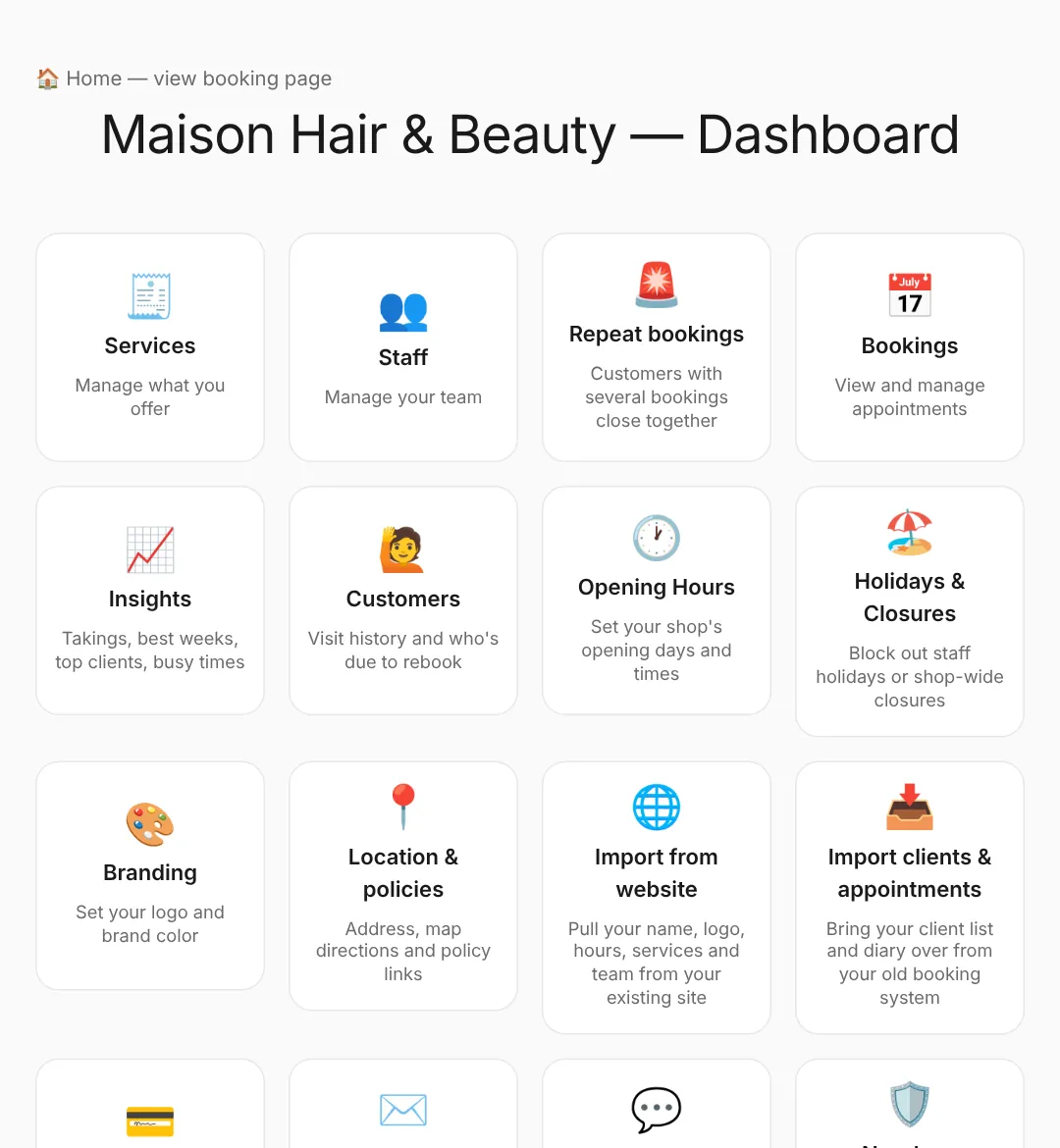
Everything included
Your own booking page
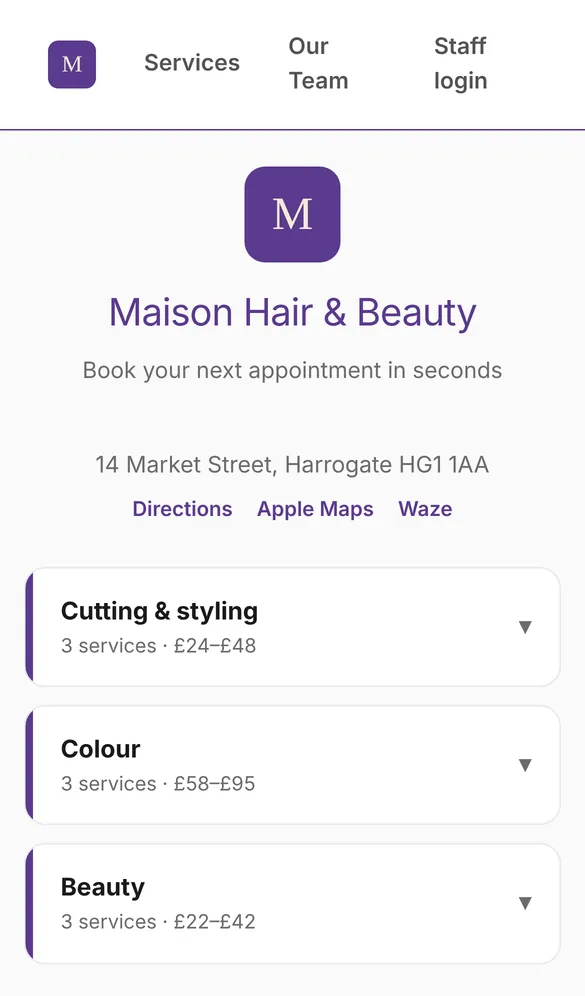
You get a branded page at yourshop.trimbooking.co.uk where customers pick a service, staff member and time — no phone calls needed.
Your brand on everything
Add your logo, colours and font once and they carry through your booking page, team profiles, emails sent in your name and the app icon on customers' phones — your business, not a generic booking app.
Import from your existing website
Already have a website? Give us the address and we'll scan it for your name and headline, logo, font and colour scheme, address, opening hours, services, team and policy links. Tick who performs each service, skip any section you've already set up, and save — no re-typing.
Staff calendars
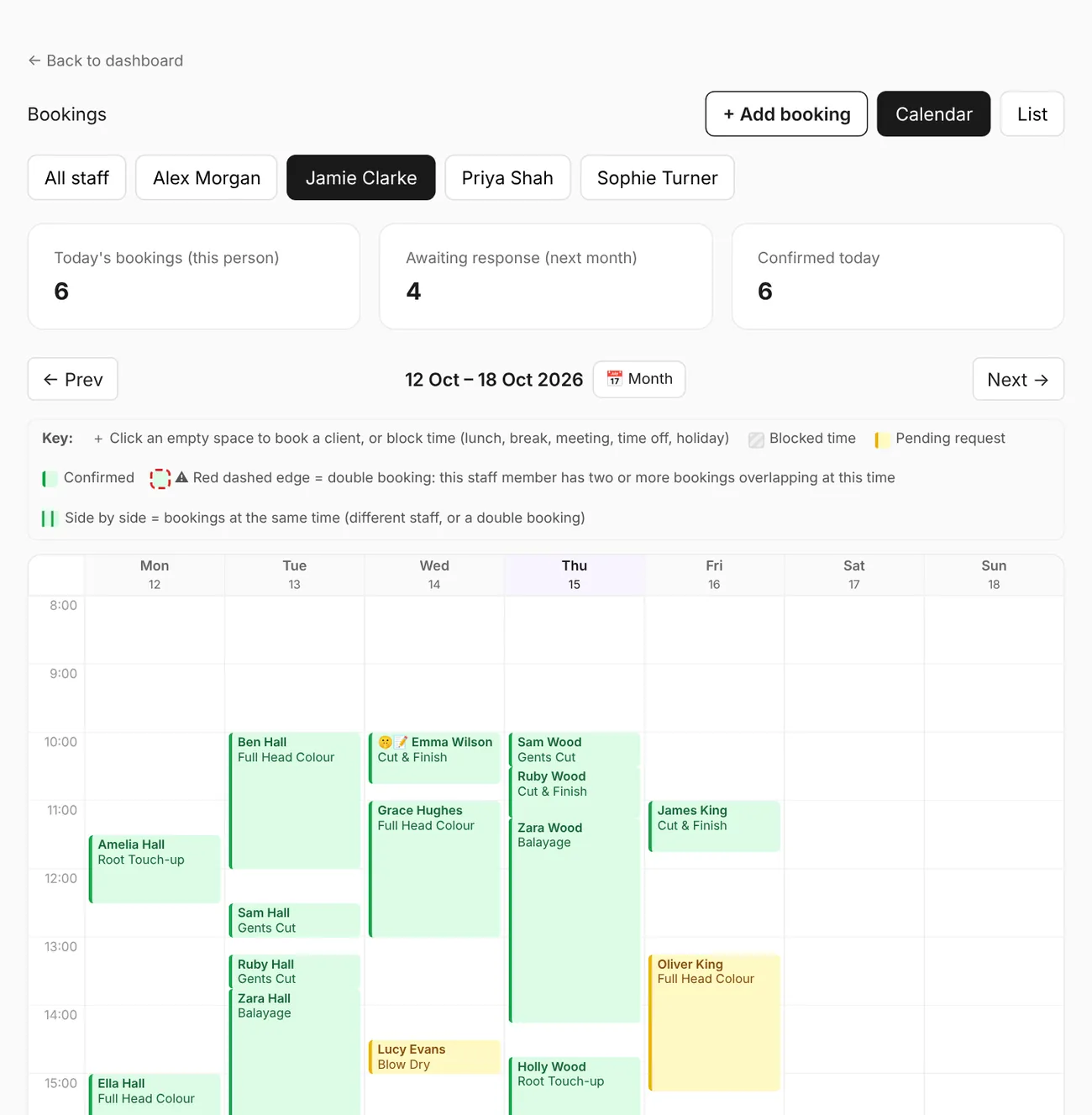
Set each team member's working hours and breaks. TrimBooking only offers times that are actually free. One calendar for the whole team or one person at a time — click an empty space to book a client or block out lunch, a meeting or time off, and click a booking to edit, rebook or cancel it.
Click a booking for the full picture
Open any appointment on a calendar to see the treatment cost, record what was actually paid, and pull up that customer's history — their last few visits, how many times they've been in, and how long they've been a customer.
Accept or decline requests, or auto-confirm
New bookings land as requests in your dashboard by default — approve or decline with one click. Or switch on auto-confirm for a staff member so their bookings are accepted instantly, no waiting on you.
Automatic emails, written your way
Customers get an email the moment they request a slot, and another the moment you confirm, decline, cancel or reschedule it — plus reminders and a nudge to rebook once they're overdue. Edit the wording of every one from the dashboard, with sensible defaults to start.
Repeat-booking alerts
If a customer has several bookings within 10 days — checked by name and by email separately, and extended 10 days at a time while more turn up — a colour-coded alert (yellow, orange, red by priority) appears on your dashboard and staff portal, and optionally on Telegram, SMS or WhatsApp. Review it to see every booking in full.
Phone bookings & double bookings
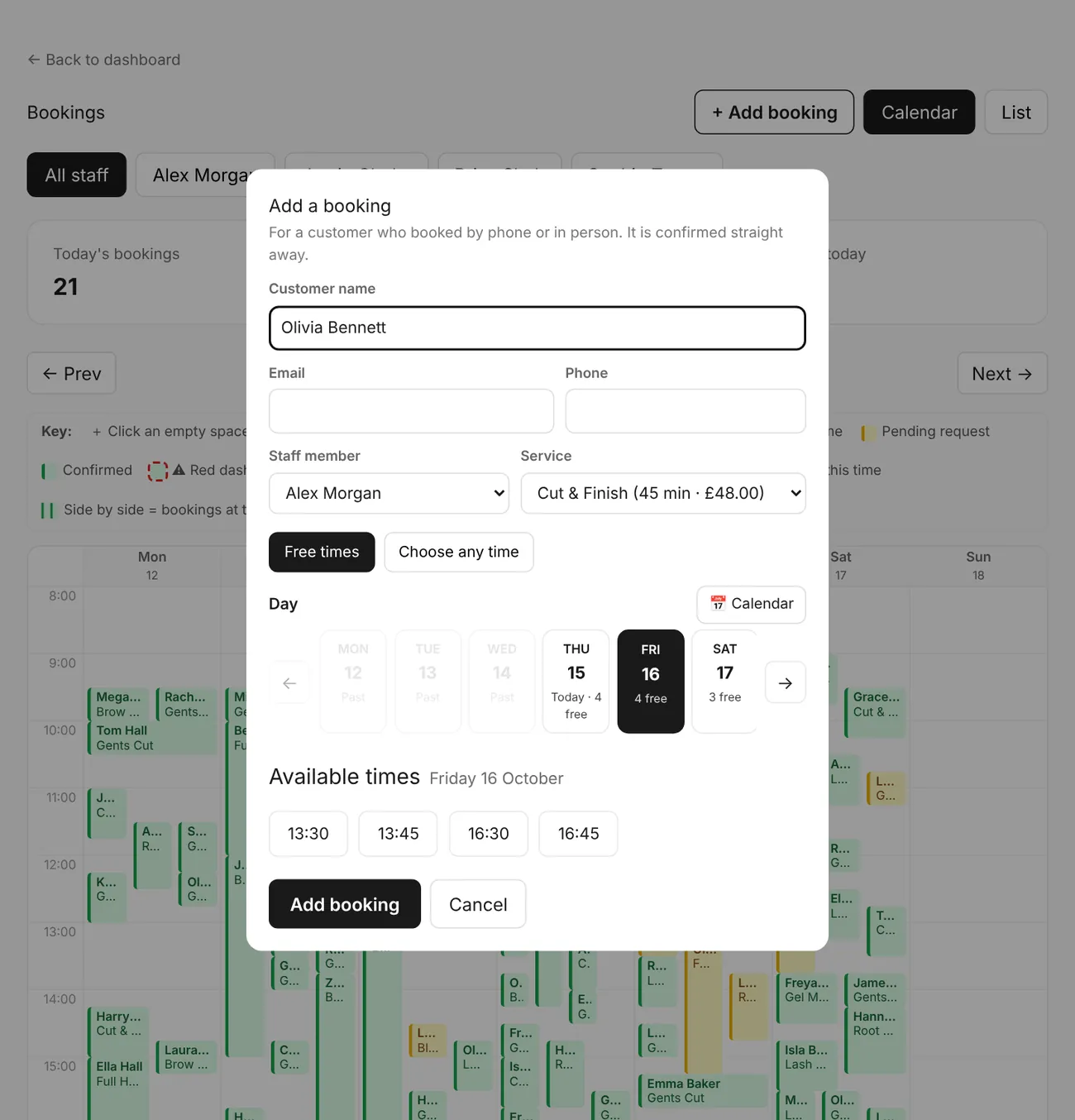
Owner and staff can add a booking for a customer who rang up, choosing a free slot or any date and time. Deliberately double-book a slot if you need to — overlapping appointments show side by side in the calendar.
One-click rebooking
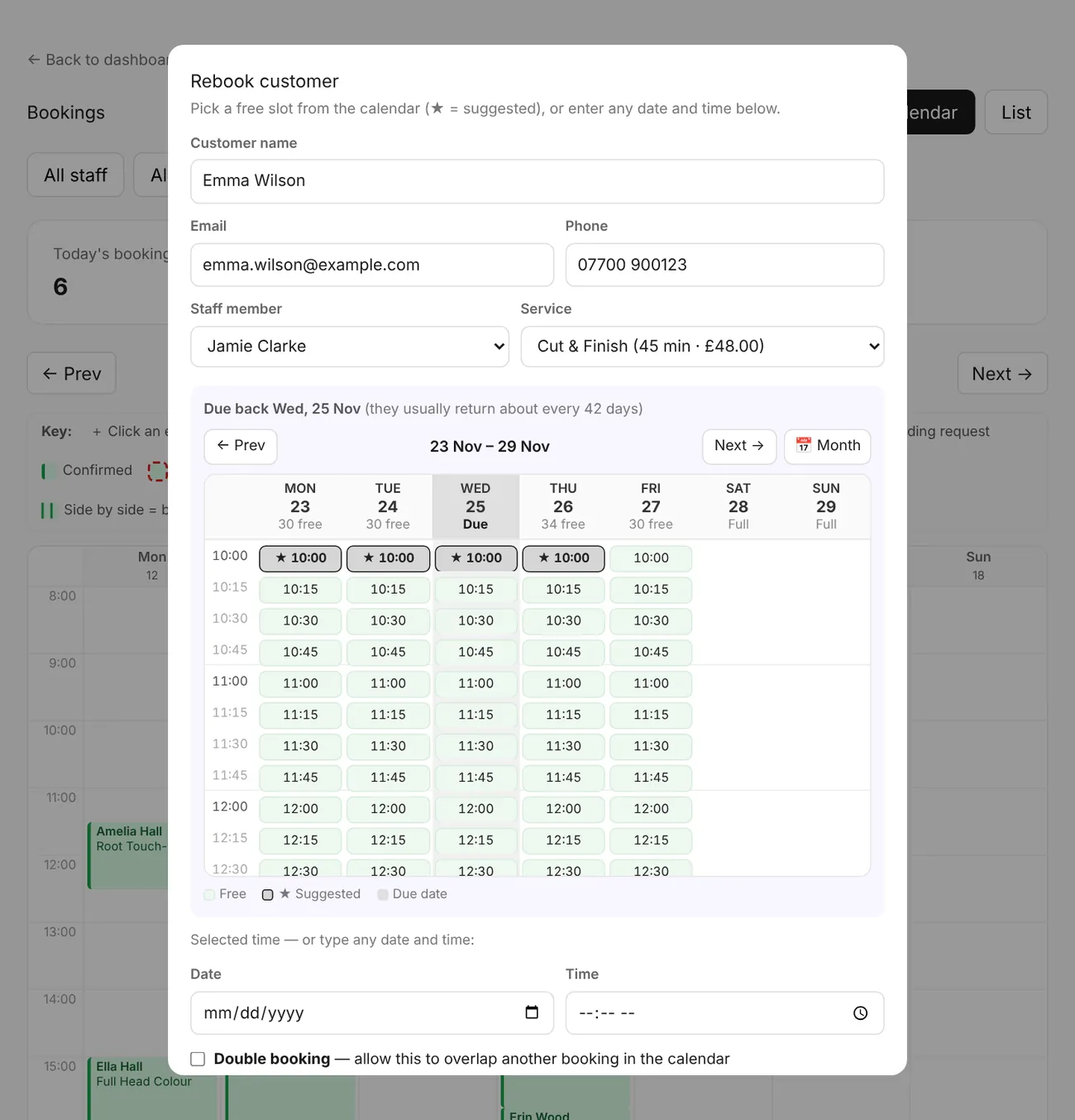
Rebook a customer from their booking on a week calendar of free slots, opened on the week they're due back (based on how often they usually visit) with the best times starred — flick back and forward a week at a time, jump to any date on a month calendar, or type any time. Once it's saved you see exactly what went in — day, date and time — so there's no need to double-check the diary. Thank-you emails the day after a visit include a Rebook button that takes them straight back to book.
Seat commission for self-employed staff
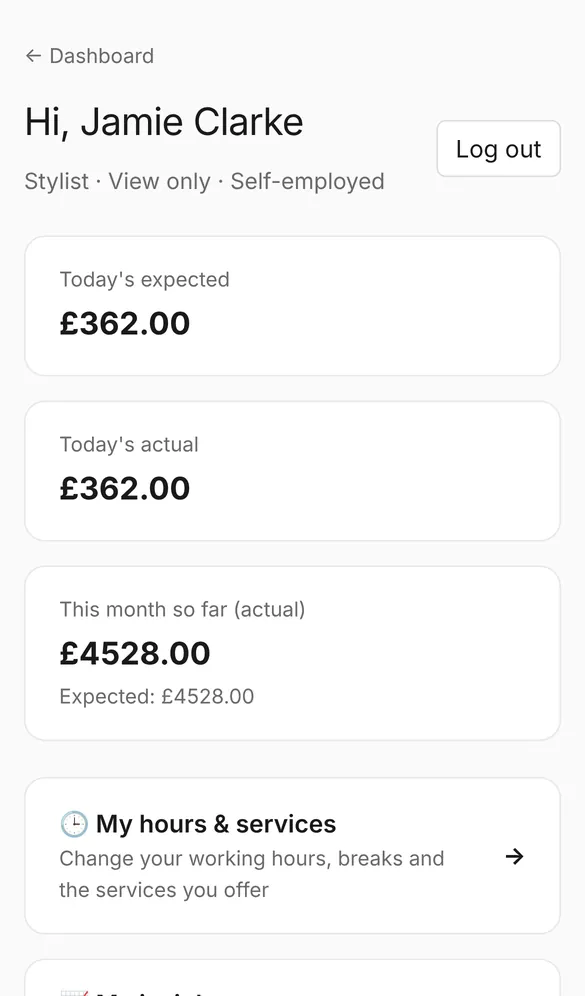
Charging a self-employed stylist a percentage for their seat? Set the commission rate per person and your Insights page shows you — and only you — the commission due each month. Their earnings stay private. They see a note on their own dashboard that the percentage is shared with you.
Self-employed staff manage their own hours
Self-employed team members change their own working hours, breaks and the services they offer from their staff portal, with no need to ask you. Employed staff can too if you give them Admin (schedule) access — otherwise they stay under your control.
Waitlist for cancelled slots
When a booking is cancelled or moved, anyone waiting for that staff member is emailed the freed-up slot with a time-limited link to grab it — first come, first served, no phone calls.
Instant Telegram, SMS & WhatsApp alerts
Connect a free Telegram bot, your own Twilio account for SMS, or WhatsApp — direct with your own WhatsApp Business number or through Twilio — to get an instant alert for new requests and cancellations. Each team member can connect their own, too, for alerts about just their own bookings.
Text your customers their reminders
Separately, send your customers their own appointment reminders by SMS (your own Twilio account) or WhatsApp (direct with WhatsApp, no Twilio needed, or through Twilio) — with built-in STOP opt-out handling. Already use a different messaging provider? We can integrate it on request.
Staff logins
Give team members their own login. Everyone can add, move and cancel bookings for the whole team and sees their own bookings and earnings; make a trusted person a dashboard admin to help run the shop. Billing, commission and other people's earnings stay with you.
Insights
A dashboard of how the business is doing: takings, appointments and how full the diary is for this week, last month or this tax year, each compared like-for-like with last week or last year.
Parallel treatment
For a long service that doesn't need you the whole time — a colour, a perm — mark which minutes actually need your attention, and open the rest of the appointment back up for another booking.
Employed or self-employed staff
Mark each team member employed or self-employed. An employed member's earnings show up in your own Insights; a self-employed chair-renter's takings are their own business and stay private to their portal.
Run multiple businesses from one login
Own more than one shop? Add another business straight from your dashboard, under the same login — no separate email or password needed, and each one has its own page, staff and settings.
Suggest another time
Can't do the time a customer asked for? Instead of declining, offer a different free slot with a short note. The new time is held for them, they get an email, and the booking is only confirmed once they accept it — or they can pick another time themselves.
Photos & documents with bookings
Customers can attach a photo or document when they book — a picture of what they need, or a form you've asked for. It's private to you and the staff member, shown on the booking, and — if you use Telegram alerts — sent straight to your chat.
Notes & quiet appointments
Customers can leave a short note to help you prepare, and ask for a quiet appointment if they'd prefer little or no chat. Switch the quiet option off for any service where it doesn't apply.
Patch tests for colour, lash & brow
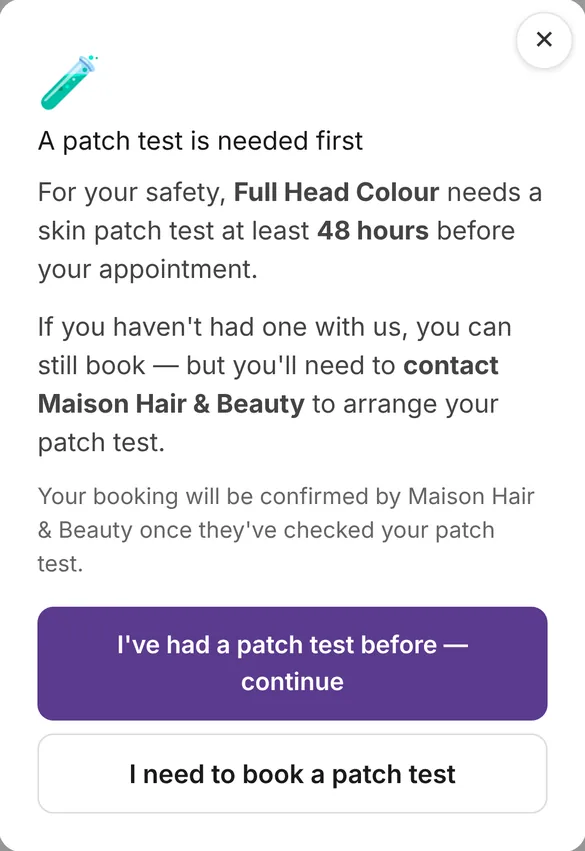
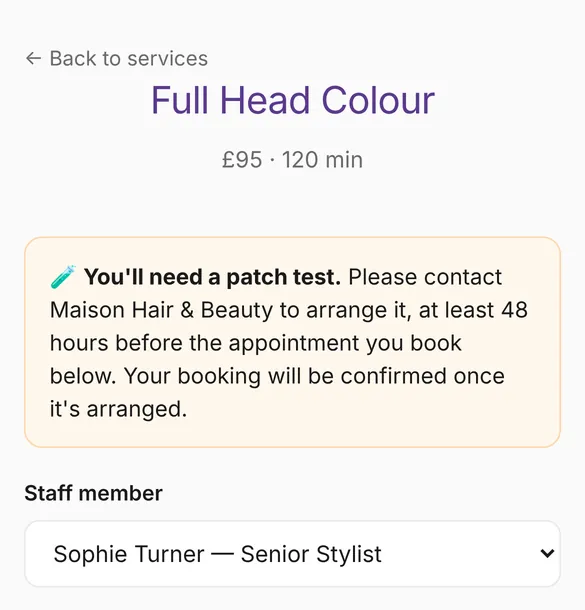
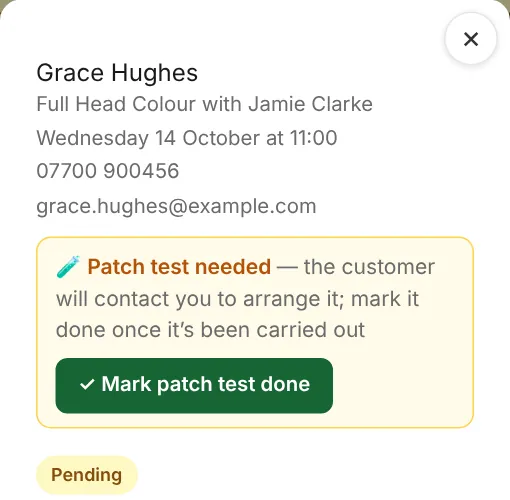
Switch on “Needs a patch test” for any service and customers are told before they pick a time. They either confirm they've had one with you, or are asked to contact you to arrange it — they can still book. Those bookings always wait for you to confirm, are flagged on your calendar, and you or your staff tap “Mark patch test done” once it's been carried out.
Choose a staff member — or anyone available
Let customers pick who they'd like to see, or choose “Anyone available” to see every free time across the team. Or switch the choice off for a service and each booking simply goes to whoever is free.
Separate calendars for mobile & off-site teams
Give a category its own calendar — off-site visits, collections, remote sessions — so those bookings run alongside your in-shop diary without blocking it. How many can be booked at once is simply how many staff you link to them.
Bring your clients & appointments with you
Moving from Fresha, Vagaro, Booksy, Timely, Phorest, Square, Setmore, Treatwell or Revyfy? Upload their client and appointment export (CSV or Excel) and your client list and future bookings come straight across — no reminders are sent for imported appointments.
A booking page that looks like your business — not like every other booking app
Most booking platforms put every shop in the same template, under their own name, often right next to your competitors. With TrimBooking your customers see your business: your logo, your colours, your font and your words, from the first tap to the confirmation email.
Three example shops, all on TrimBooking. Same system — each one unmistakably its own.
Your logo, colours & font
Your logo, brand colour, background, text colour and font run through your booking page, team profiles and every screen your customers see.
Your own booking address
yourshop.trimbooking.co.uk — a page that is only about you, ready for Instagram, Google and your website.
No competitors next to you
It isn’t a marketplace. Customers never see other salons, barbers or groomers listed alongside you or recommended instead.
Emails in your name, your words
Confirmations and reminders come from your shop’s name, and you can rewrite every one in your own tone of voice.
Your logo on their home screen
When customers save your page to their phone, it opens like an app — with your logo as the icon, not ours.
Your story, your welcome
Your own headline and welcome line, team photos and bios, opening hours, address and policies — set up in minutes, or pulled from your existing website.
Booking takes under a minute
Pick a service & staff member
Customers visit your booking page, choose what they want and who they'd like to see (or "Anyone available"), and can add a note, a photo or a document.
Choose a time
Only genuinely free slots are shown, based on that staff member's working hours, breaks and existing bookings.
Get confirmation by email
They receive an email straight away, then another once you confirm — with a link to manage, reschedule or cancel any time. If you suggest a different time, they accept it from the same link.
Patch tests, handled before the appointment
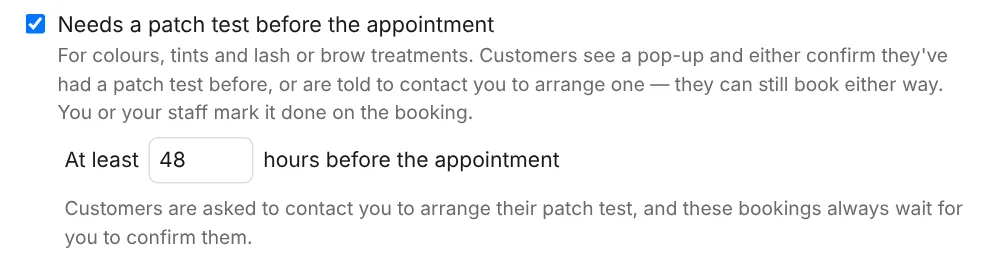
Tick Needs a patch test before the appointment on any service and set how much notice you need (48 hours to begin with). Customers can still book online — and nothing gets forgotten on the day.
The customer is told up front
Before any times appear, a pop-up explains a patch test is needed. They choose I've had a patch test before, or I need to book a patch test — and are asked to contact you to arrange it, at least 48 hours before the appointment.
The booking waits for you
Patch-test bookings always arrive as a request to confirm — even for staff who normally auto-confirm — and show 🧪 Patch test needed or 🧪 Patch test confirmed on the calendar and in your alerts.
Mark it done on the booking
Once the test has been carried out, you or any member of staff opens the booking and taps ✓ Mark patch test done. The booking keeps a record of when, and you confirm the appointment as normal.
Know how the business is really doing
This week, last month, this tax year
Revenue, appointments, average spend, new clients, no-shows and utilisation — how much of your bookable time actually got booked. Each one is compared with the same point last week, the same month last year, or the same point last tax year.
Week on week, and your best week
A chart of the last 12 weeks, this week so far against the same point last week, and your best week of the last 12 months to aim for.
Busy and quiet times
A day-by-hour heatmap of how full you are, with plain-English pointers — when you're always full and might need cover, and the quiet slots worth an off-peak offer.
Your top 10 spenders
Who your most valuable clients are this tax year — visits, total spent and when they were last in.
Who you haven't seen in 3 months
Clients whose last visit was over 3 months ago and who have nothing booked, most valuable first, with one-tap call and email. You decide who to get back in touch with.
By team member
Appointments, hours booked, utilisation and clients for each person, owner-only. An employed team member's revenue is shown here too; a self-employed chair-renter's takings aren't part of the shop's revenue, and stay private to their own portal.
Your team gets their own login — with the right access
Invited by email
Give a staff member an email address in the dashboard and send them an invite — they set a password and they're in.
See what they've earned
Mark a team member self-employed (the default, for someone renting their own chair) and their day-by-day and month-to-date earnings stay private to them, visible to nobody else, including you. Mark them employed instead, and you see their schedule and earnings from your own dashboard too — the way it works for the rest of your business.
Their own insights
Each staff member gets their own insights page too — their takings, best week, top clients, regulars they haven't seen lately, and when their diary is busy or quiet. Only they can see it.
Cover for each other
Every staff login can open the shop's Bookings calendar to add, move, rebook or cancel anyone's appointments — so whoever is free can help. Nobody else's earnings are ever shown.
Dashboard admins
Make a trusted team member a dashboard admin and they can manage services, hours, bookings, customers, holidays and branding with you. Billing, commission and other people's profiles stay yours.
Optional self-management
Give staff Admin (schedule) access and they manage their own working hours, breaks and services, and record the payments they take. Self-employed staff always can.
Want the full walkthrough?
The user guide covers every screen, step by step.